Loading... Please wait...
Shop By Printer
Categories
Save Money by Printing in Black & White
Posted by on
Many times we hit print without thinking. There are times when printing in color is needed and appropriate but oftentimes, printing in black and white (sometimes called grayscale) makes sense and saves on the cost of printer ink. While your individual set up may be slightly different, below are four steps to setting your printer to print in black and white.
Step 1: Start/Control Panel
On the bottom right of your computer screen you’ll
find the start button. Once you enlarge
that screen, you’ll find “Control Panel” on the right side. Click on “Control
Panel” to open another screen.
Step: 2: Find “Devices and Printers”
At the control panel you want to select the option “Devices
and Printers”. This will open a window
that shows all the devices installed on your computer. They should be divided
into different categories depending on what you have installed on your
computer.
Step 3: Find your printer
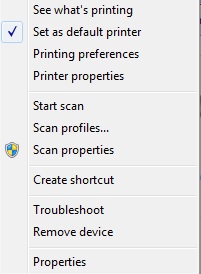
Right Click on your printer
or model and select “Printing Preferences”.
Step 4: Locate “Print in Black and White” or
“Grayscale” Option and Click Apply
Each printer manufacturer has different setups for printing preference so there is no universal set of instructions that can be given for this step. However, you’ll want to look for “Quality” or “Color” or perhaps look at “Advanced” settings. You should then find an option to switch from color to black & white or grayscale. Hit okay or apply and close.

In addition to printing in black and white, you can also save money by purchasing remanufacutred and compatible ink cartridges. Inkbarn has compatible ink cartridges for many printers and offers a useful Ink & Toner Locator to make finding the right cartridge very easy.